
Your cart
There are no more items in your cart

You might also like


Google Address Autocomplete for PrestaShop
Selected:
$49.99
What your customer sees
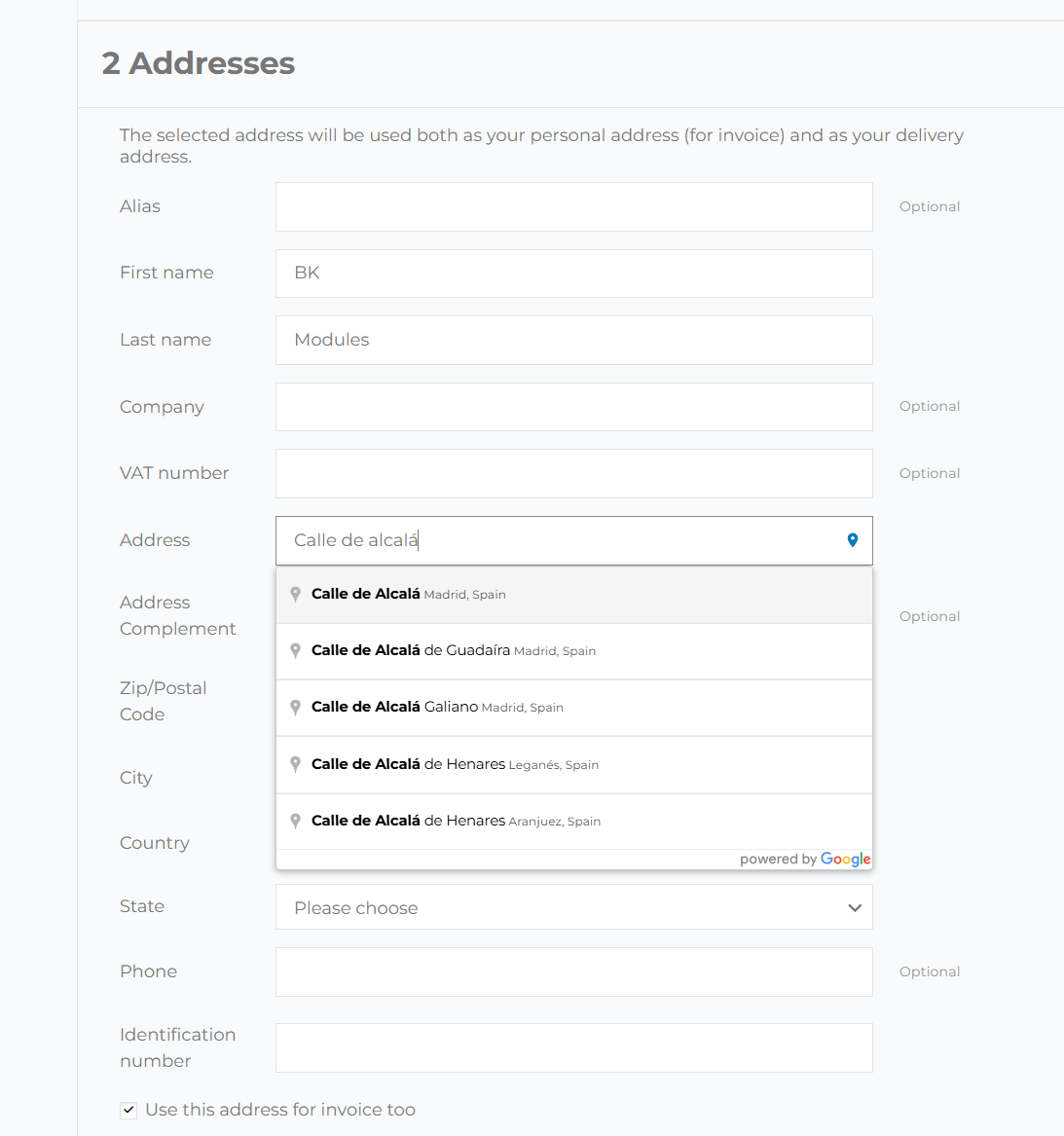
They type the first few letters of their street and pick their address from the list.
Your customer reaches the address step of the checkout and, as soon as they start typing in the "Address" field, Google suggests real addresses right below it, in their language. One click on theirs and the form fills itself in: street and number, postcode, city, state or province and country. All that is left is the flat or door number, if they have one. It is the address autocomplete at checkout they already know from the big online stores, now in your PrestaShop.
What fills itself in
- Street and number, with the flat or suite when Google has it
- City or town
- The full postcode
- State, province or region, picked in the PrestaShop drop-down
- Country, picked in the PrestaShop drop-down
Made for mobile
Typing a whole address on a phone is the most tiring part of an order. With autocomplete, a few letters and one tap are enough, and your customer gets to the pay button sooner.
Where it appears
In every address form of your store, without you having to place it.
At checkout
In the address step of the PrestaShop checkout, for both the delivery and the invoice address, and also when the customer orders as a guest.
In "My addresses"
When your customer adds or corrects an address from their account, the field suggests the same addresses as at checkout.
Switching country loses nothing
If the chosen address is in another country, PrestaShop reloads the form to ask for that country's fields. As soon as it finishes, the module puts the street, postcode, city and state back, so your customer does not have to type them again.
How it fits your theme
It hooks onto the usual address field: no templates, no core changes.
The module finds PrestaShop's standard address field and adds Google's suggestions to it, so it works with classic, with Hummingbird and with the themes built on them. It does not replace your form or change its design: it only adds a small location icon inside the field.
Nothing covers the suggestions
Chrome's autofill and password managers such as LastPass or 1Password step aside, so Google's list is the only one your customer sees.
Enter does not submit
Pressing Enter to choose a suggestion chooses it; the form is not sent half-filled.
The list follows the field
When the page scrolls, the suggestion drop-down stays attached to the address field.
Only where it is needed
The Google Maps script loads asynchronously and only on pages with an address form. The rest of the store does not notice it.
In your back office too
Your team types addresses with the same autocomplete as your customers.
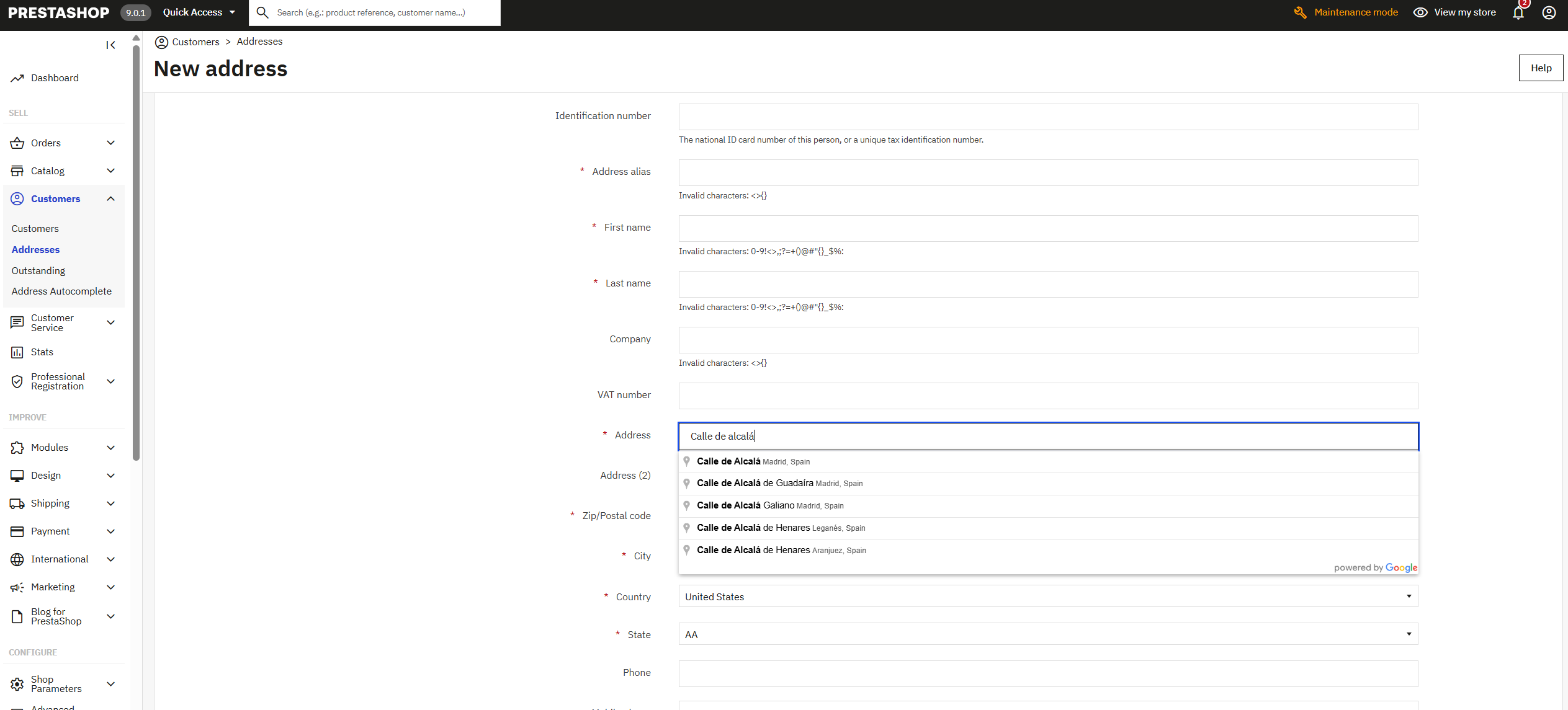
When you or someone on your team creates or edits a customer's address in Customers › Addresses, the address field also suggests Google addresses and fills in the rest: postcode, city, state and country. It is a real time-saver when you take an order over the phone or fix an address that came back.
Fewer delivery errors
An address picked from a list has no typos.
Every parcel that comes back because of a misspelt street or a wrong postcode costs you two shipments and a customer left waiting. With autocomplete, your customer does not type the address: they pick it from Google's address data, where it already exists and is spelt correctly, and the fields are filled with the details that come with it. It is the simplest form of address validation, right at the moment the address is entered.
The full postcode
In countries like the UK, where Google sometimes returns only the first half of the postcode, the module looks up the full one for that address.
The right state
Google's data is matched to the states or provinces set up in your PrestaShop, and the right one is selected in the drop-down.
In your customer's language
Suggestions appear in the language they are browsing in: someone shopping in French sees addresses in French.
Fewer abandoned carts
A long form is one of the places where people give up on a purchase. One that fills itself in gets finished sooner.
Who it is for
Any store that sends things to an address.
Stores that ship a lot
If you send many parcels a day, every misspelt address you avoid is one return and one phone call fewer.
Lots of mobile traffic
If most of your customers buy from their phone, this is where it shows most: a few letters and a tap instead of five fields.
International stores
Every country writes its addresses its own way. Google brings them in order and the module puts them in the fields PrestaShop asks for in that country.
B2B stores
Trade customers set up several delivery addresses. With autocomplete, each one is added in seconds from "My addresses".
Local delivery
If you deliver in your own area, limit suggestions to your country and addresses reach you exact for the route.
Phone orders
If your team creates orders from the back office, they enter customers' addresses just as fast and without typos.
Compatibility
PrestaShop
- PrestaShop 1.7, 8 and 9 in the store
- Back office: PrestaShop 8 and 9
- Multistore
- Any theme that uses the standard address field
- No core modifications
Requirements
- PHP 7.4 or later (8.x recommended)
- A Google Maps API key with Places enabled, in your own name
- A Google Cloud billing account, with its free monthly allowance
- Lifetime licence with three months of updates and support
Frequently asked questions
How do I add address autocomplete to PrestaShop?
Install the module, paste your Google API key into its settings page and switch it on. From then on, the "Address" field at checkout, in "My addresses" and in the back office suggests addresses from Google Maps. There is no need to touch your theme or any code.
Do I need a Google Places API key? How much does it cost?
Yes: the autocomplete API is served by Google Maps Platform, and you create the key for free in your Google Cloud account, which asks for a card for billing. Google charges by usage and every month comes with a free allowance; a small or medium store usually stays within it. Any bill comes from Google to your own account, with no middleman, and you can set a daily cap in the console to avoid surprises.
Does it work in the PrestaShop 1.7, 8 and 9 checkout?
Yes. In the store it works on PrestaShop 1.7, 8 and 9, for both the delivery and the invoice address of the standard checkout; in the back office, on PrestaShop 8 and 9.
Does it work with a one-page checkout module?
It works with those that keep PrestaShop's order page and its standard address field. If your checkout is built by a module with its own page, write to us before buying with the module's name and we will tell you whether it fits.
Can address autocomplete be used for address validation?
It makes sure the address arrives correctly written: your customer picks it from the addresses Google knows, with their postcode, city and state, instead of typing it. It does not check the flat or door number, which are still up to them, but it removes the street and postcode typos that send most parcels back.
Which countries does it support? Can I limit it to the countries I ship to?
Google has addresses for practically the whole world. If you only sell in some countries, you can limit suggestions to up to five, which is the maximum Google allows; with no limit, addresses come from everywhere. For the country to be selected automatically, it has to be active in your store.
Does it work at registration and in "My addresses"?
In "My addresses", yes: when adding or editing an address from the account. PrestaShop does not ask for the address at registration but at the first order or in "My addresses", and that is where autocomplete does its job.
Will it slow down my store?
Not on the pages that do not need it: Google's script only loads, asynchronously, where there is an address form. The home page, categories and product pages load nothing new.
What does the licence include?
The licence is yours forever and includes three months of updates and support; with the Continuity Plan you get the installation, the first year and the yearly renewal.
Configuration
One screen, four settings and done in a couple of minutes.
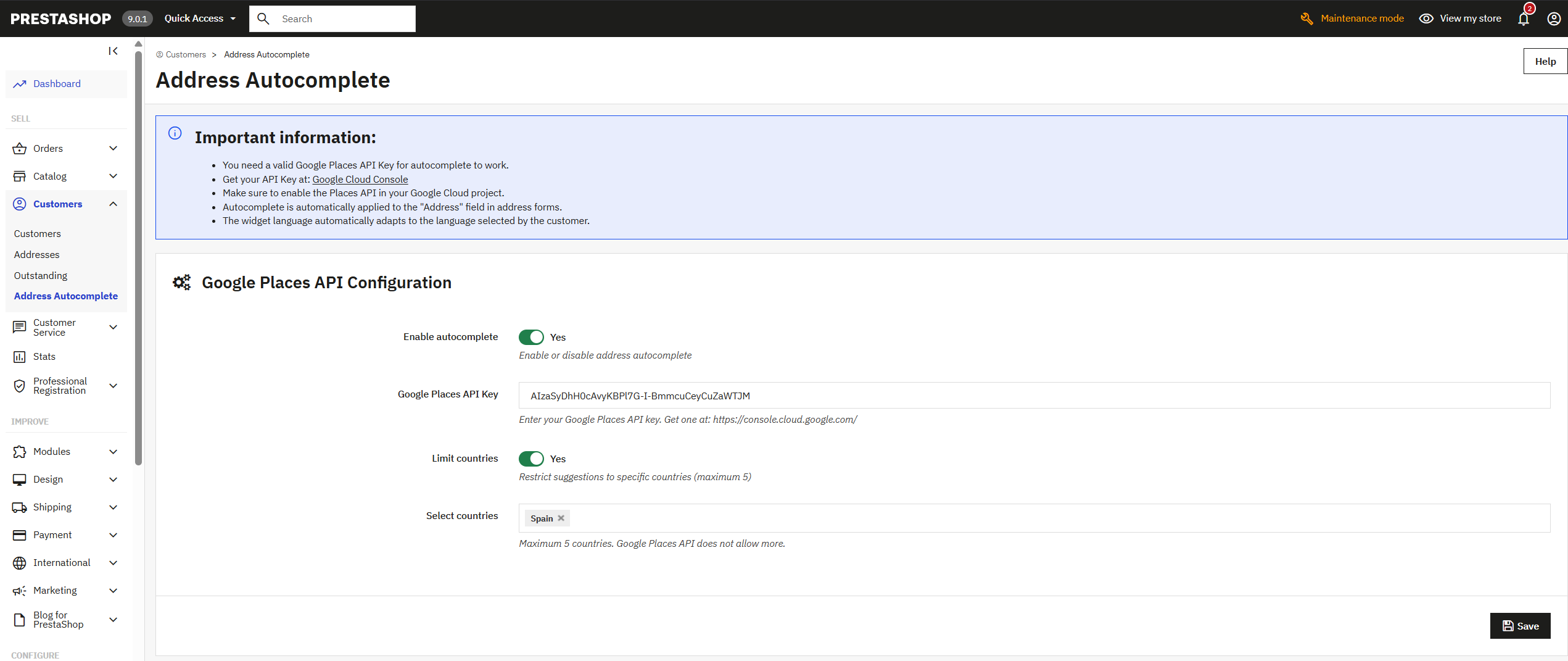
- Enable or disable autocomplete with a switch.
- Google API key, the one you create in Google Cloud.
- Limit by country, if you only sell in some.
- The countries, up to five, chosen from a list.
No country limit
Suggestions include addresses from all over the world. For stores that ship anywhere.
With a limit (up to 5 countries)
Only addresses from the chosen countries appear, and suggestions are more precise. Google allows a maximum of five at a time.
How to get the API key
1. Go to Google Cloud Console and create a project. 2. Enable Maps JavaScript API and Places API; if you ship to the UK, also Geocoding API, which is what completes the postcodes. 3. Create an API key and restrict it to your domain. 4. Paste it into the module's settings and switch it on.
You might also like

- Best seller
B2B Module with VIES Validation & EU VAT Exemption for PrestaShop
Turn your PrestaShop into a full-featured B2B platform: validated company registration, real-time VIES VAT check,…
- PS 1.7.8+
- PS 8
- PS 9
$274.99
View module

PrestaShop ALTCHA Anti-Spam
Protect your PrestaShop forms from spam and bots with ALTCHA. A reCAPTCHA alternative with no Google dependency and no…
- PS 1.7+
- PS 8
- PS 9
$39.99
View module

- Mandatory in 2026
Withdrawal Button for PrestaShop — EU Directive 2023/2673
The withdrawal button and form that Directive (EU) 2023/2673 requires from every PrestaShop shop since 19/06/2026.…
- PS 1.7.5+
- PS 8
- PS 9
$79.00
View module
16 other products in the same category

- New
Product Images per Language for PrestaShop: a Cover in Each Language
For products whose box, label or manual changes with the language. Each customer only sees the images of their language…
- PS 1.7.5+
- PS 8
- PS 9
$64.99
View module
PrestaShop ALTCHA Anti-Spam
Protect your PrestaShop forms from spam and bots with ALTCHA. A reCAPTCHA alternative with no Google dependency and no…
- PS 1.7+
- PS 8
- PS 9
$39.99
View module

- New
Free 301 Redirects for PrestaShop: Fix 404 Errors Without Losing Rankings
Deleted a product or changed a URL, and Google keeps sending visitors to the old address? With this module they land on…
- PS 1.7.5+
- PS 8
- PS 9
Free
View module

- New
Combinations Table for PrestaShop: Quick Order by Size and Color
Every combination of your product in one table, added to the cart at once. Your customer sees every size and colour…
- PS 1.7.5+
- PS 8
- PS 9
$64.99
View module

Anti-Bot Protection for PrestaShop: Faceted Search Shield & Rate Limiting
For shops where bots crawl every filter combination and the hosting company warns about 100 % CPU. Answers before the…
- PS 1.7.6+
- PS 8
- PS 9
$164.99
View module

- New
Product Accessories for PrestaShop: Add-ons by Combination
For shops selling things that are bought in pairs: the case with the phone, the ink with the printer, the mounting kit…
- PS 1.7.5+
- PS 8
- PS 9
$89.99
View module

Subscriptions with Stripe for PrestaShop
Sell subscriptions and let every renewal arrive on its own as an order. Monthly boxes, refills, services or software…
- PS 1.7.6+
- PS 8
- PS 9
$224.99
View module
- Best seller
B2B Module with VIES Validation & EU VAT Exemption for PrestaShop
Turn your PrestaShop into a full-featured B2B platform: validated company registration, real-time VIES VAT check,…
- PS 1.7.8+
- PS 8
- PS 9
$274.99
View module

Geolocation for PrestaShop: Prices, Currency & Language by Country
Every visitor lands in the language, currency and price of their own country, automatically. Country rules, a flag…
- PS 1.7.6+
- PS 8
- PS 9
$99.99
View module

- New
IndexNow for PrestaShop: Fast Indexing on Bing
You add a product, change a price or take a page down, and Bing can take days or weeks to notice. This module tells…
- PS 1.7.6+
- PS 8
- PS 9
$49.99
View module

Virtual Products with Combinations for PrestaShop
Sell downloadable products that also have combinations in PrestaShop: every variant keeps its own price and its own…
- PS 1.7.6+
- PS 8
- PS 9
$49.99
View module
- Mandatory in 2026
Withdrawal Button for PrestaShop — EU Directive 2023/2673
The withdrawal button and form that Directive (EU) 2023/2673 requires from every PrestaShop shop since 19/06/2026.…
- PS 1.7.5+
- PS 8
- PS 9
$79.00
View module

Email Designer for PrestaShop: Header, Footer and Templates
Put your logo, your colours and your text on every email your shop sends: order confirmation, new account, shipping,…
- PS 1.7.6+
- PS 8
- PS 9
$89.99
View module

- New
B2B Quotes for PrestaShop
Answer every quote request with your prices and get the order paid in your own shop. Your customer builds a quote with…
- PS 1.7.6+
- PS 8
- PS 9
$129.00
View module

- Mandatory in 2026
EU Guarantee Notice for PrestaShop — Regulation (EU) 2025/1960
Comply with the EmpCo directive: the official EU guarantee notice and the manufacturer’s GARAN label in your shop, in…
- PS 1.7.5+
- PS 8
- PS 9
$79.00
View module

- New
Sales Agents for PrestaShop
Your sales agents place their customers’ orders in your shop, with the customers’ prices and their own commission. Each…
- PS 1.7.5+
- PS 8
- PS 9
$129.00
View module
Tap to zoom
Tell us what your business needs
A module, an app, a server that is giving you trouble or something urgent. We answer within 24 hours, with a fixed quote with a price and a date.