
Your cart
There are no more items in your cart
HostLens · free extension for Chrome and Firefox
The server IP, the CDN and the tech stack of every site, without leaving the page
HostLens puts a small badge in the corner of the site you are viewing with the IP of the server you connected to. The panel tells the rest: whether Cloudflare sits in front and which edge served the page, the server software and, if you want, what the site is built with. All from data the browser already has: no extra requests, no accounts, no tracking.
You already have it installed: this page's badge is in the bottom-right corner.

104.21.34.56CF
Everything the panel tells you
Click the toolbar icon and this opens. It is the real panel, in three parts: what it always sees, what it detects on request, and how you tune it.
First: IP and CDN
 123
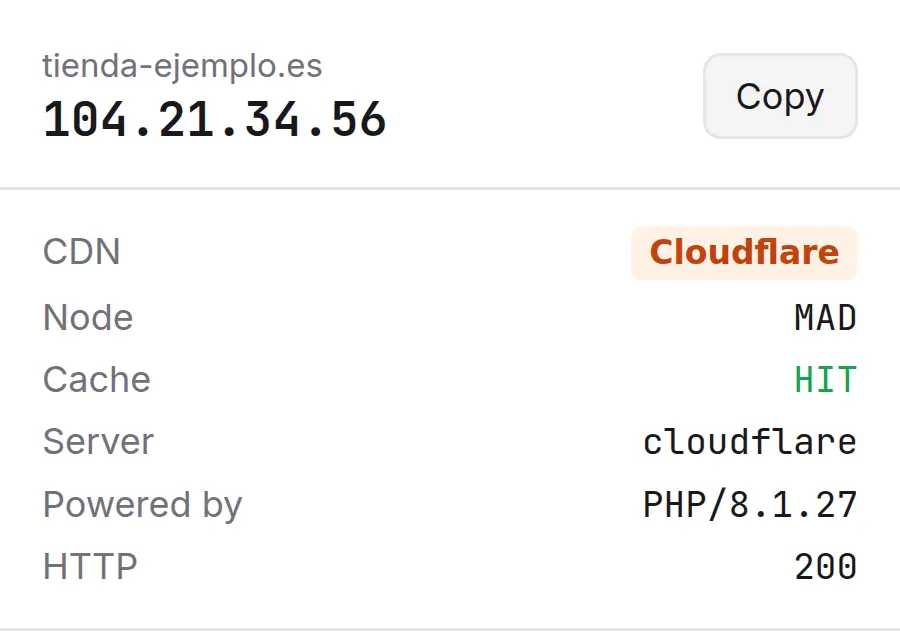
123- 1The IP, and a button to copy itThe server the browser connected to for this tab. If the response came from cache, it says so right there.
- 2CDN, edge node and cache statusCloudflare, CloudFront, Fastly, Akamai, Vercel, Netlify, Bunny… recognised by their headers. The node that served the page (MAD, CDG, FRA) and whether it came from cache: HIT, MISS, DYNAMIC.
- 3Server, X-Powered-By and HTTPWhat the server says about itself and the response code. Same response, zero cost.
Tech stack, if you turn it on
 123
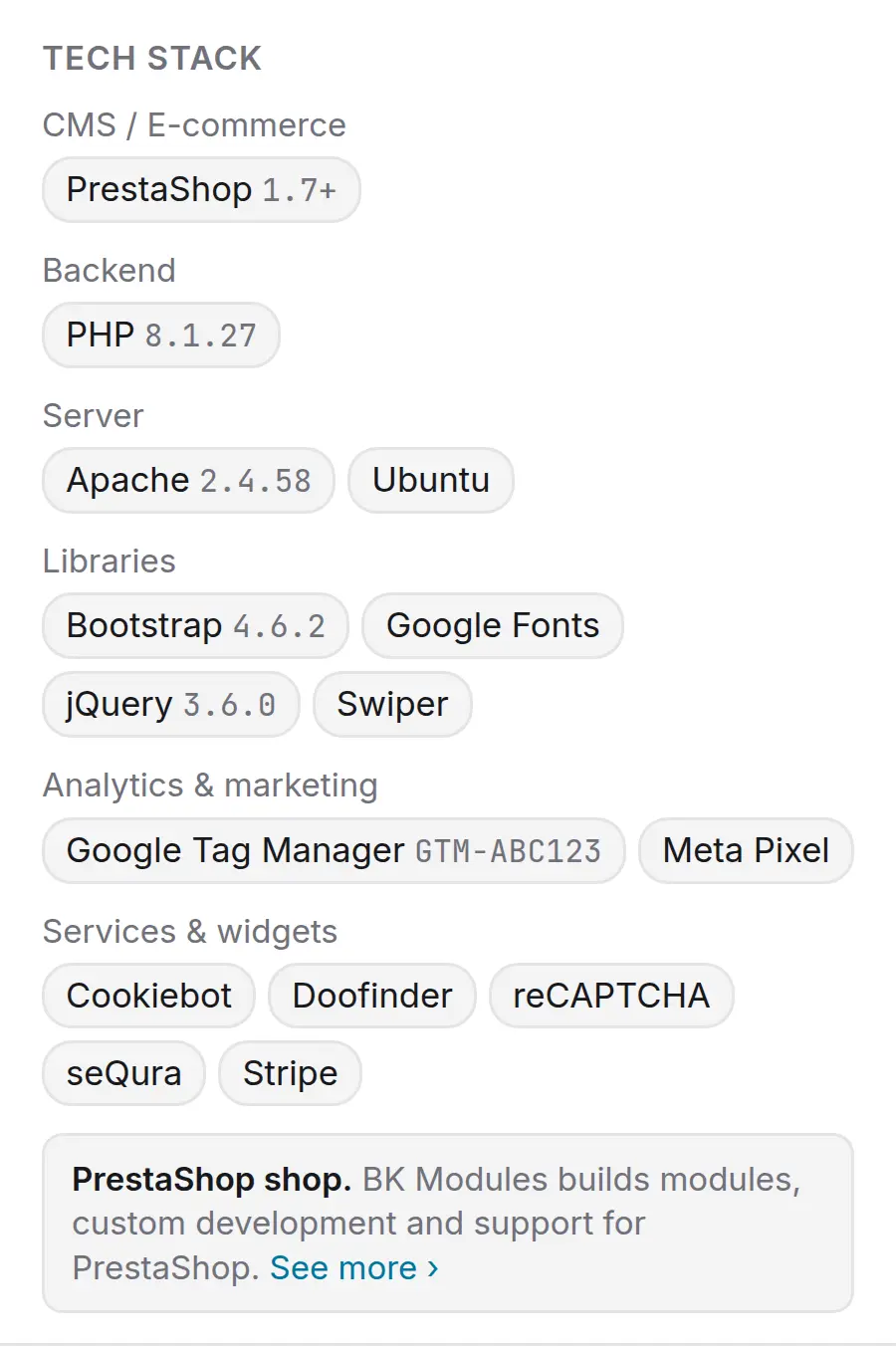
123- 1By category, with versionsCMS and e-commerce, backend, web server, frontend, libraries, analytics and services. Versions appear when the site exposes them (PHP 8.1.27, jQuery 3.6.0, Bootstrap 4.6.2), and so do Google Tag Manager and Analytics IDs, even when a blocker stops them from loading.
- 2Every chip says where it came fromOn hover: headers, page, resources or cookie name. Inferred items (PHP because there is PrestaShop) get a dashed border so you never mistake them for evidence.
- 3If it is a PrestaShop shop, we knowTells 1.6 from 1.7 and 8, and sees Elementor, Creative Elements or IQIT Elementor without mistaking them for WordPress. It is our speciality, so that is where we show up.
Settings and shortcuts
 1234
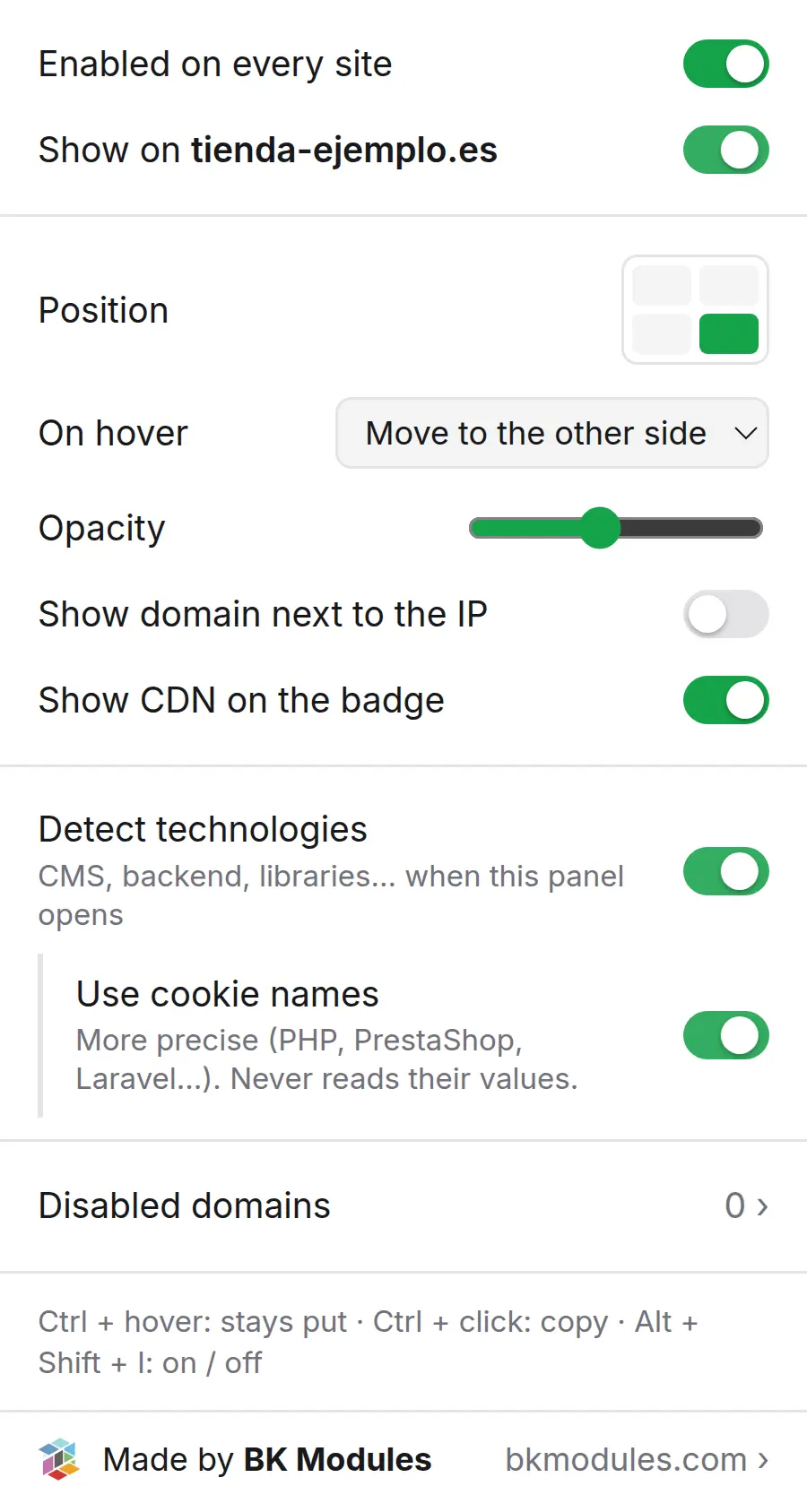
1234- 1On every site or just this oneA global switch and one per domain. Disabled domains have their own searchable manager, and you can paste whole lists.
- 2Where it sits and how it dodgesThe corner, where it jumps on hover (other side, up and down, diagonal or not at all), opacity, and whether it shows the domain and the CDN.
- 3Tech detection with optional permissionsOff by default. Turning it on asks the browser for the permission, which is removed when you turn it off. Cookie names only if you tick it; values are never read.
- 4Shortcuts and who makes itAlt + Shift + I toggles it on every site. And at the bottom, the link back here.
A badge that stays out of the way
Always there, never in the middle. That is what makes you keep it on every site instead of opening it when you remember.
It dodges the pointer
Hover it and it jumps to the other side, coming back once you move away. Whatever was underneath — the chat, the cookie button — is clickable as usual.
Ctrl + click copies the IP
With Ctrl held the badge stays put and a click copies the IP to the clipboard. One second between seeing the IP and having it in your terminal.
Turn it off wherever you like
Per domain from the panel, or on every site with Alt + Shift + I. And it never prints.
What we use it for
We built it for the daily work of a PrestaShop agency. We publish it exactly as we use it.
- Case 1
Migrations
Check that a domain already resolves to the new server, on every site and every tab, without
pingordig. - Case 2
Cloudflare and CDNs
See whether a shop goes through Cloudflare, which edge serves it and whether the page came from cache. HIT/MISS explains a lot of "it feels slow".
- Case 3
Quick audits
Which PrestaShop, PHP and jQuery versions, which payment gateway and which analytics a shop runs, before quoting anything.
- Case 4
Support
When a client writes "the site is slow", the first question — which server, what is in front of it — is answered the moment you open it.
Privacy: nothing leaves your browser
Not a slogan, but how it is built. The extension has no server and makes no requests: it reads what the browser already received from the page.
- No network requestsThe browser already has the IP and headers from loading the page. No DNS lookups, no geolocation, no third-party services: nobody learns which sites you look at.
- No account, no analyticsNo sign-up, no usage statistics, no telemetry. Links to bkmodules.com carry UTM tags so we know which part of the extension was clicked; nothing more.
- Permissions asked only when neededReading the page and cookie names only if you enable tech detection, and they are removed when you turn it off. Cookie values are never read.
| Data | Purpose | Where it lives | How long |
|---|---|---|---|
| IP and headers of each tab's main page | IP, CDN, node, cache, server | storage.session, in your browser | Until you close the tab |
| Your settings and the list of disabled domains | Remember your configuration | Your browser profile (storage.sync / local) | Until you uninstall |
| Public page markers (meta generator, script URLs and snippets, global variables) | Detect technologies, if enabled | Not stored: read when the panel opens | While the panel is open |
| Cookie names of the site (never their values) | Refine PHP, PrestaShop, Laravel…, if enabled | Not stored | While the panel is open |
Quick start
One minute and it is set. This is what you see right after installing.
Open any site
The badge appears bottom-right with the IP and, if there is one, the CDN tag: CF, CFront, Fastly…
Pin the icon to the toolbar
Puzzle → pin. Click it to open the panel with CDN, server and settings.
Turn on tech detection if you want it
The "Detect technologies" switch. The browser asks for the permission once; the analysis only runs when you open the panel.
Remove it where it bothers you
Untick "Show on this domain", or Alt + Shift + I to turn it off everywhere at once.
Questions we get asked
Why do I see a Cloudflare IP instead of my server's?
Because the CDN is in front: your browser connects to Cloudflare, not to your server, and that is the only IP that exists from outside. The CF tag tells you so. Not even your browser sees the origin IP.
What does the yellow dot mean?
The page was served from the browser cache, with no new connection. The IP shown is the one from the last real connection to that site.
Does it work with IPv6?
Yes. It shows whichever address the browser used, v4 or v6, and the domain manager accepts bracketed IPv6 addresses.
Does it detect the exact PrestaShop version?
It tells 1.6 from 1.7 and 8, which is what a shop exposes publicly. The exact version would require requests to the shop, which is precisely what the extension never does.
Why does it ask to "read and change all your data on all websites"?
That is the browser's standard warning for any extension that works on every site: the badge has to appear without a click, and seeing the IP means observing the response. It changes nothing on any page beyond adding the badge, and you can restrict it to chosen sites from chrome://extensions or about:addons.
Which languages does it come in?
Spanish and English, following the browser language. This page also exists in French, Italian and German.
Made by the team that keeps PrestaShop shops running
HostLens is free and will stay free. If yours is a PrestaShop shop — a module, custom development, an ERP integration or someone who answers when something breaks — that is what we do.