• New
Redsys payment gateway for PrestaShop: card, Bizum, Google Pay and Apple Pay at checkout

Try it before you buy Live demo with the module installed

Got a question before you buy? Tell us about your shop and we'll reply within 24 hours.

Ask us

Redsys Payment Gateway for PrestaShop: Card, Bizum, Google Pay & Apple Pay

Take payments in PrestaShop through the Redsys virtual POS your bank gave you, without your customer leaving your shop.

What’s included

  • Visa and Mastercard
  • Bizum
  • Google Pay and Apple Pay
  • PayPal
  • Card payments inside the checkout (InSite), without leaving your shop
  • Bizum, Google Pay and Apple Pay
  • Subscriptions and recurring payments with RedsysRequires an additional BK Modules module
  • Paygold: payment links by SMS or email
  • 1-click payment with a saved card
  • Several POS terminals and refunds from the order
$64.99
Option
PrestaShop 1.6.1 · 1.7 · 8 · 9
SSL Secure
Instant Download
Developer support
Licensed
Redsys payment gateway for PrestaShop: card, Bizum, Google Pay and Apple Pay at checkout
Redsys Payment Gateway for PrestaShop: Card, Bizum, Google Pay & Apple Pay
Selected:
$64.99

What your customer sees

Take card, Bizum, Google Pay and Apple Pay payments through your Redsys virtual POS, without your customer leaving your shop. Redsys is the payment gateway behind the virtual POS that Spanish banks give their merchants. In the payment step, your customer sees every method your bank has switched on, each with its official logo: card, Bizum, Google Pay and Apple Pay, and PayPal. Each one appears only once, even if two POS terminals can charge it, and with the name you want to give it in each language.

PrestaShop payment step with the Redsys module: pay by card, with Bizum and with Google Pay or Apple Pay

One method, one line

If your bank gives you one POS for cards and another for Bizum, your customer doesn't see “Pay by card” twice. The module picks which POS charges each method by the order you give them, and if one of them will never get to charge anything because another one higher up already does, the list tells you.

Card in your shop (InSite)

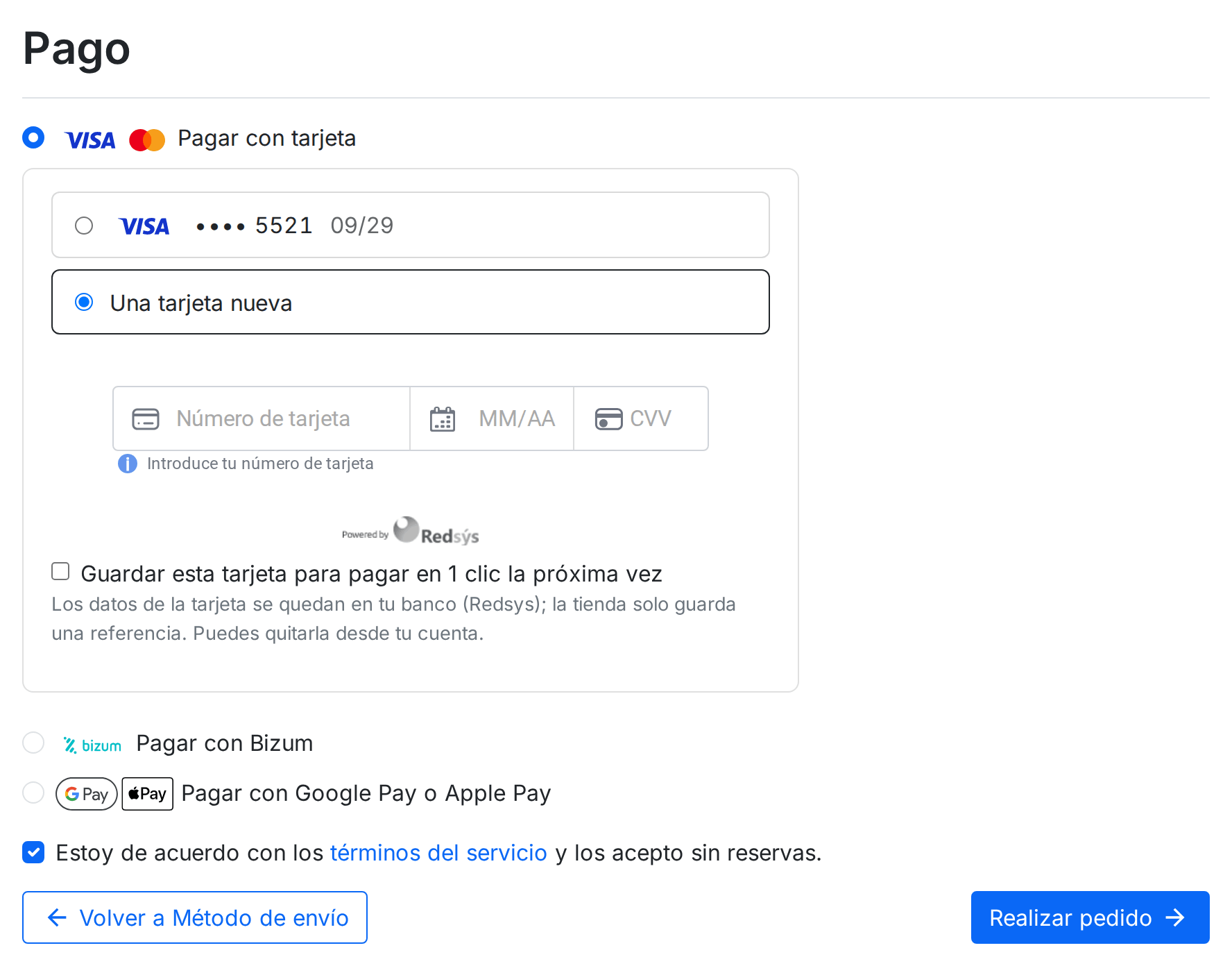
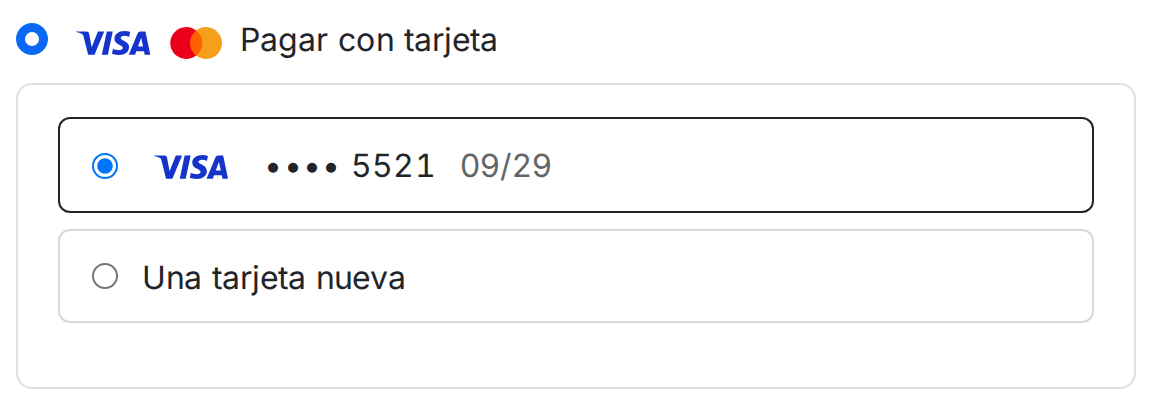
With payment in your shop (what Redsys calls InSite), your customer types their card on your own page, with your header and footer, and never jumps to the bank's page. The card details go straight from their browser to Redsys: your shop never sees them. If their bank asks them to confirm the payment, the check opens right there.

Card payment inside a PrestaShop shop with Redsys InSite and a saved card for one-click payment

One-click payment

  • Your registered customer ticks “Save this card” and pays with one click next time
  • In their account they have “My saved cards”, with the brand and the last digits, and remove them whenever they like
  • The card stays at Redsys; your shop only keeps a reference

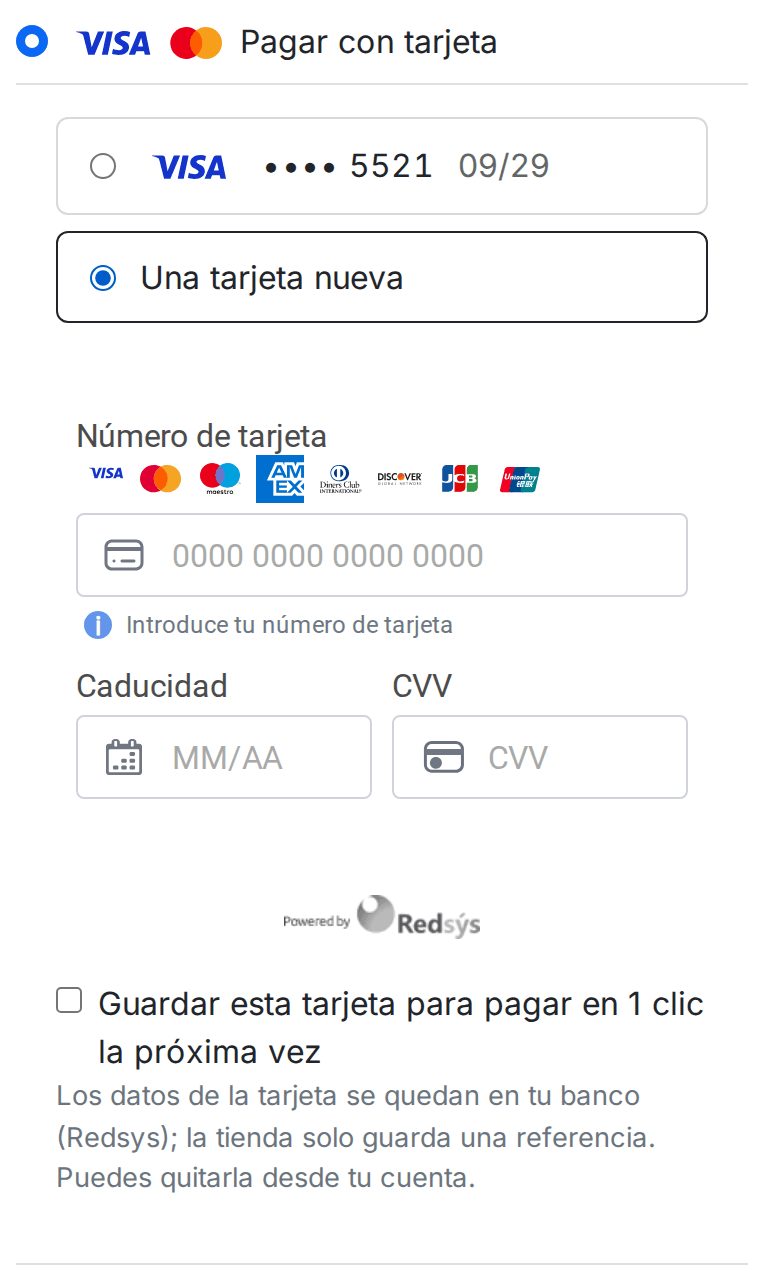
On a phone

  • The form fits on one row or two depending on the screen width
  • In your customer's language
  • If you prefer the Redsys page, you switch to “on the bank's page” with one click
Redsys card payment on a phone in a PrestaShop shop

One Redsys POS or several

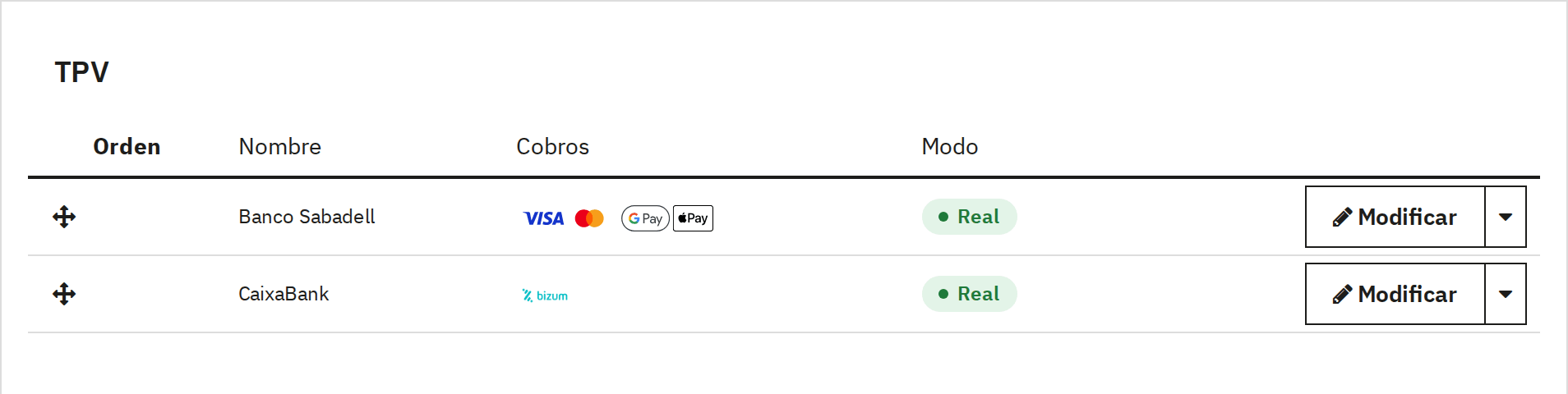
You paste the details your bank gave you once per POS, and that POS charges every method it has switched on: card, Bizum, Google Pay and Apple Pay, PayPal. You don't repeat the key for each payment method. If you work with two banks, or with one POS per shop or per country, you add them and put them in order by dragging.

List of Redsys POS terminals in the PrestaShop back office with the methods each one charges

When each method shows

By amount, country, zone, language, customer group and carrier, and without the categories or products you choose. Bizum, for example, only from €10.

Your name at the bank

The merchant name and the description your customer sees on the Redsys page and on their statement, with the shop, the cart or the customer in it.

Risk-free testing

A POS in test mode is only visible on the computers you choose, and its orders stay in “Paid in test mode”, never as really paid.

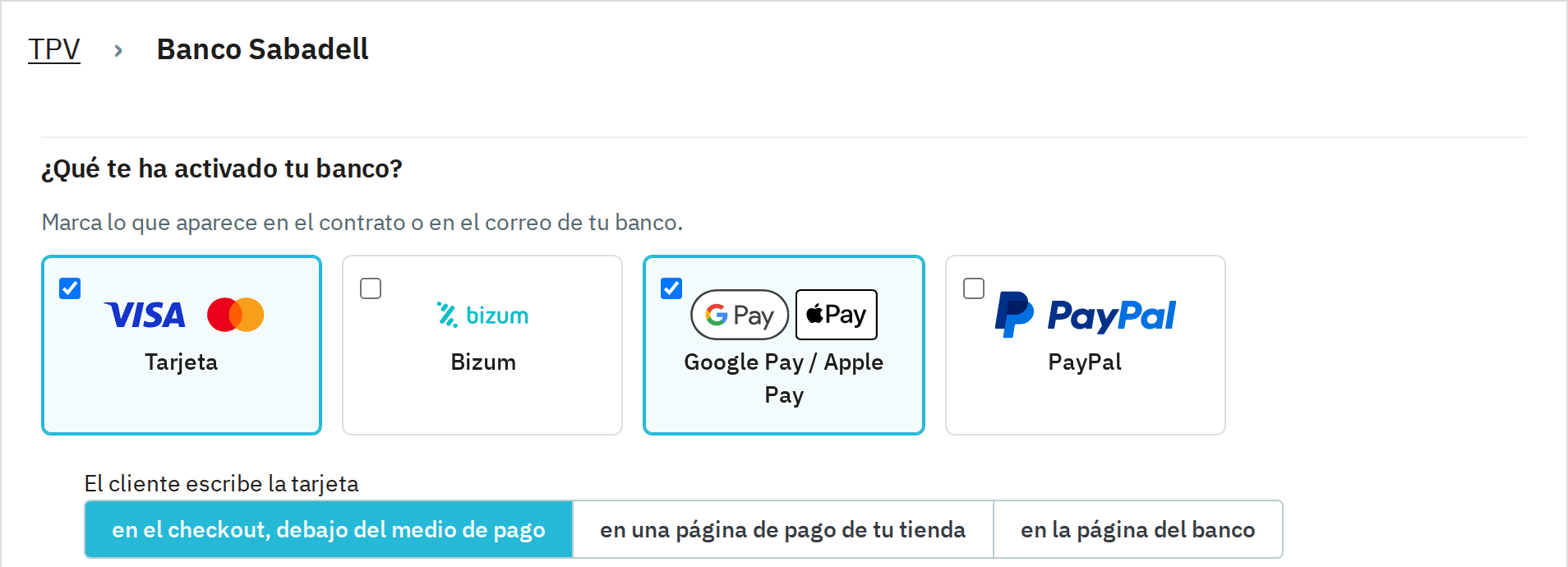
Payment methods of a Redsys POS in PrestaShop: card, Bizum, Google Pay, Apple Pay and PayPal with their logos

Paygold and payment links

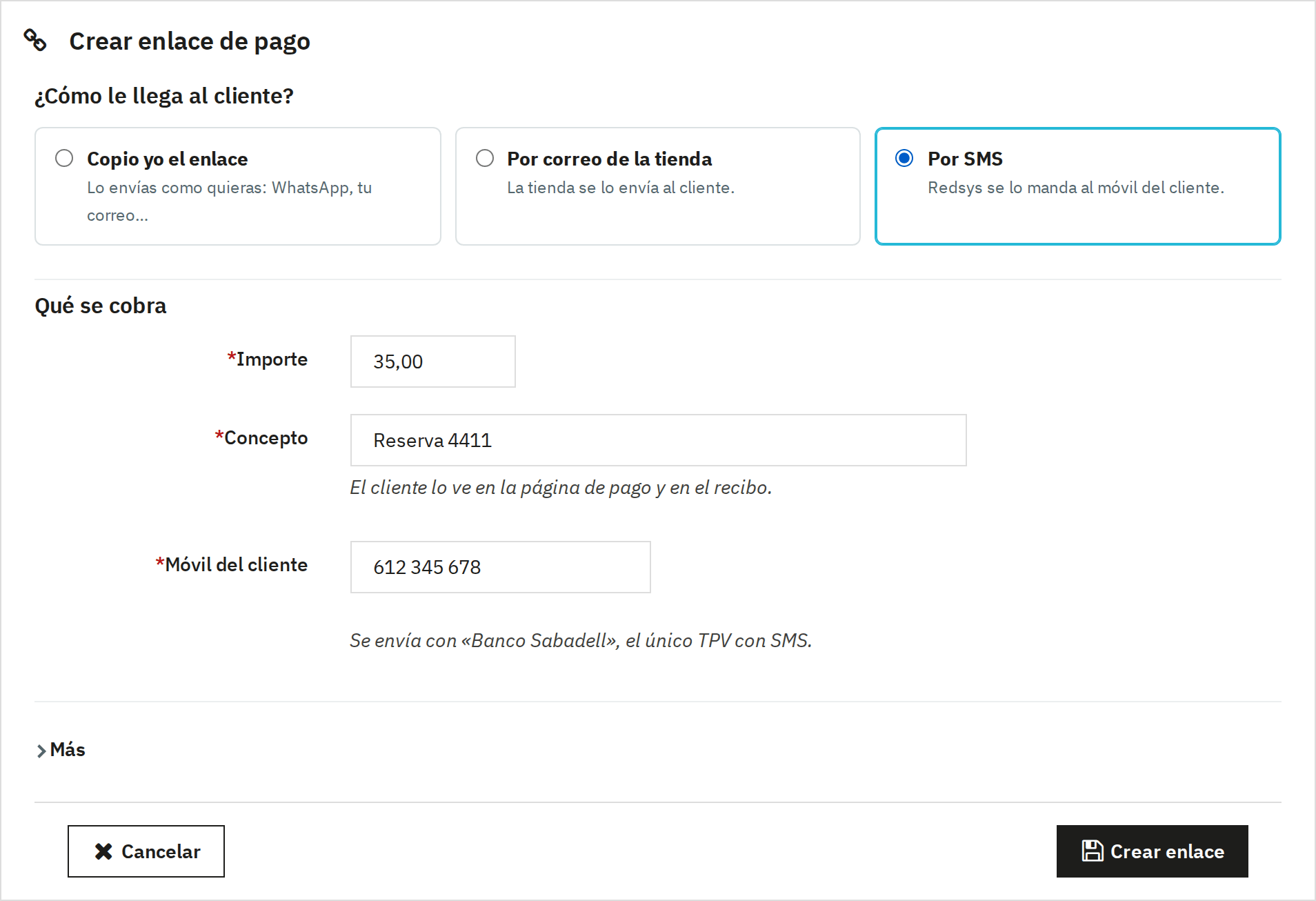
A booking over the phone, a deposit, a quote accepted by email: you create a payment link with the amount and the description, and choose how it reaches the customer. You copy it to send by WhatsApp, your shop sends it by email or Redsys texts it by SMS (Paygold, if your bank switches it on for you).

Creating a Redsys Paygold payment link in PrestaShop to send by SMS, by email or to copy

What your customer sees

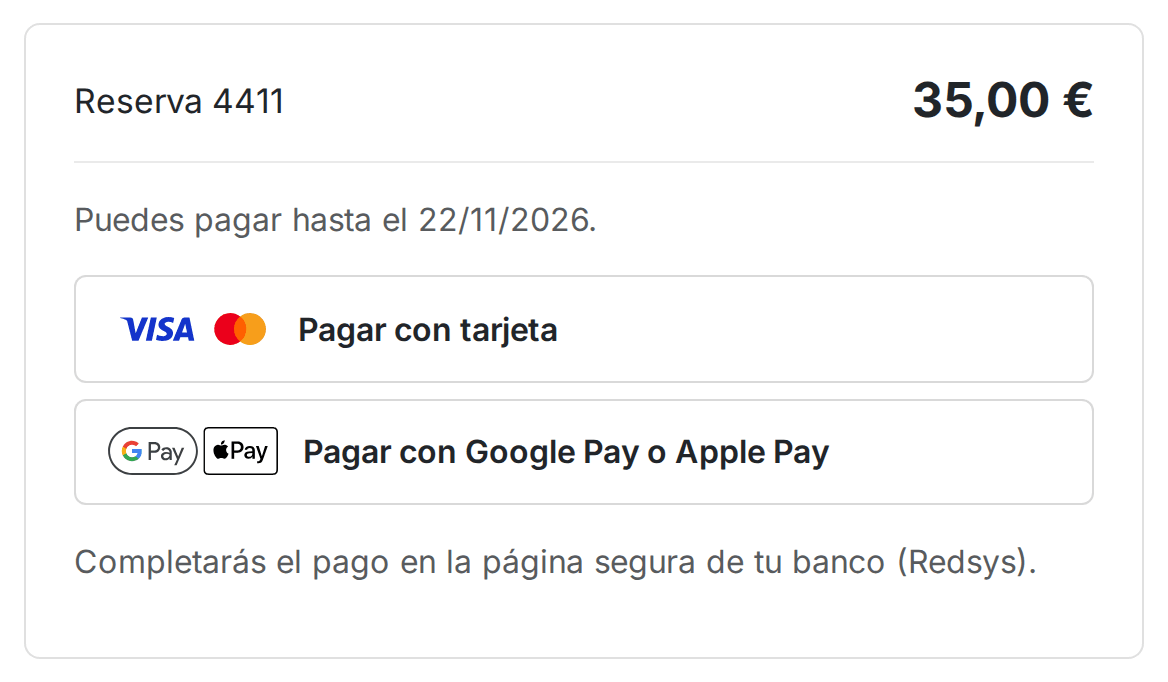
A page of your shop with the description, the amount and the date they can pay until, with the methods of your POS. The link expires when you say and you can cancel it as long as nobody has paid it.

Redsys payment link page in a PrestaShop shop with card and Google Pay or Apple Pay

From an unpaid order

  • “Send payment link” on the order page, by email or by SMS
  • When the customer pays, the order moves to “Payment accepted” on its own, with the payment recorded

Open payment form

  • A page where your customer types the amount and the description, for those who pay you invoices or services
  • With a captcha and a limit of payments per hour to stop bots

Your day-to-day

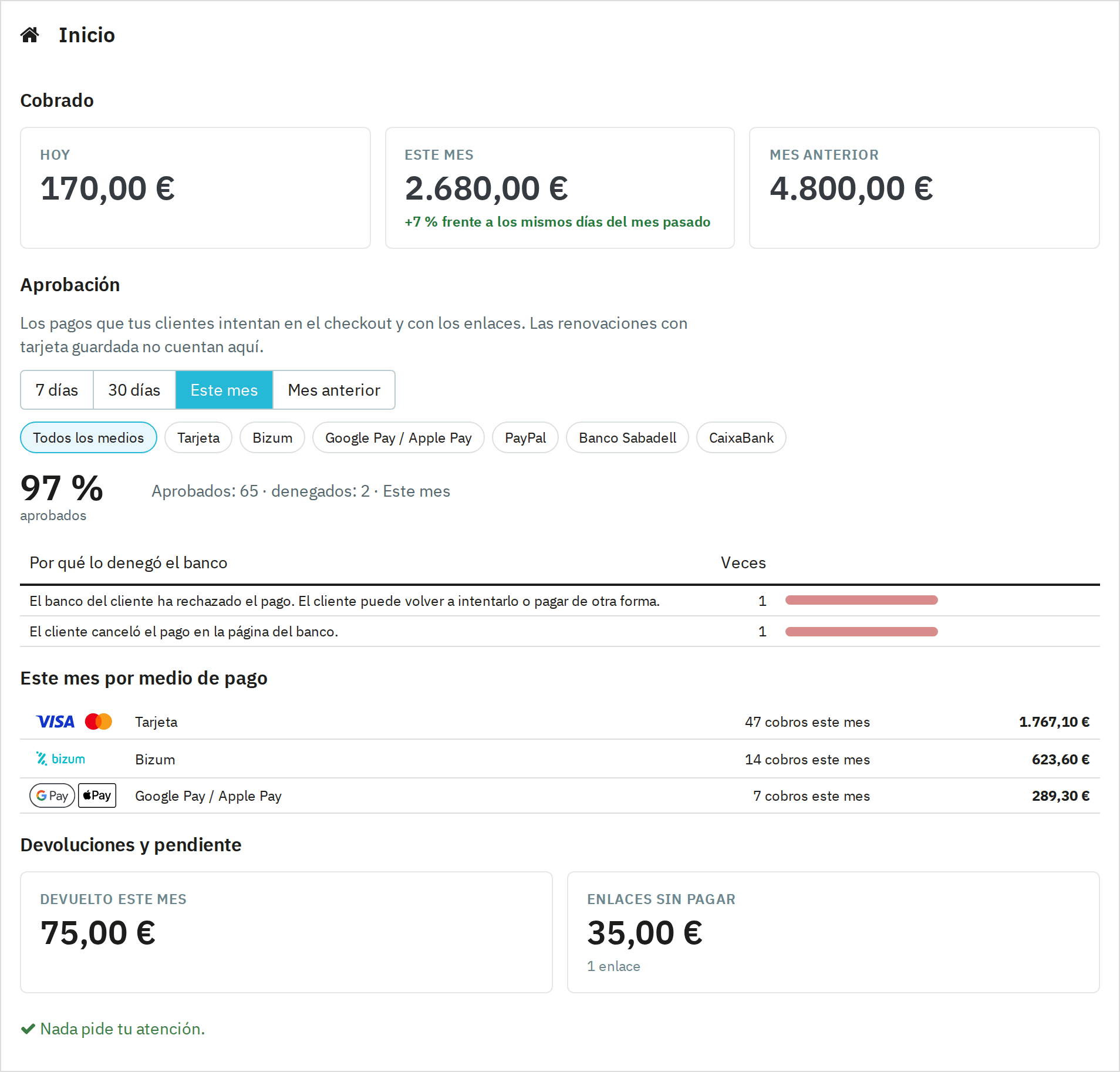
When you open Payment › Redsys you see what you have charged today, this month and last month, how many payments the bank approves and why it declines the rest, explained in shop words. Below that, what was refunded, what is authorised and waiting to be captured, and the unpaid links.

Home screen of the Redsys module in PrestaShop: amount charged, approval rate per payment method and decline reasons

Refunds from the order

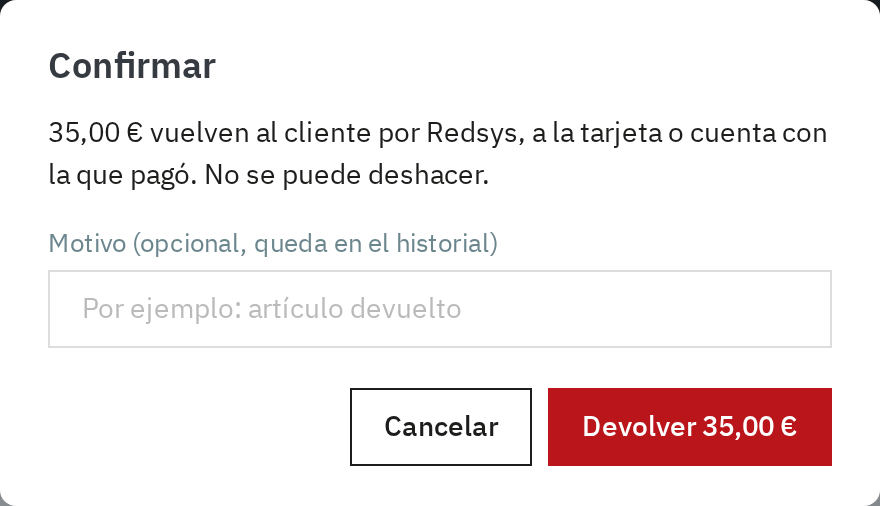
On the order page you have what was charged, what was refunded and what is left. You type the amount and click “Refund”, or “Refund all”. Before any money moves it asks you to confirm, and you can leave the reason in the history. If you prefer, the module refunds on its own when the order moves to “Canceled” or “Refunded”.

Refunding a Redsys payment from the order page in PrestaShop with confirmation and reason

Authorise now, capture when you prepare

If you sell made to order, the bank holds the amount on the card and you capture it when you prepare the shipment, from the order or automatically when it moves to “Processing in progress” or “Shipped”. If you can't fulfil it, you release the hold and the customer pays nothing.

Every payment

Each payment attempt, with its customer, its order, its method and its POS, with search by date and CSV export for your accountant.

When something goes wrong

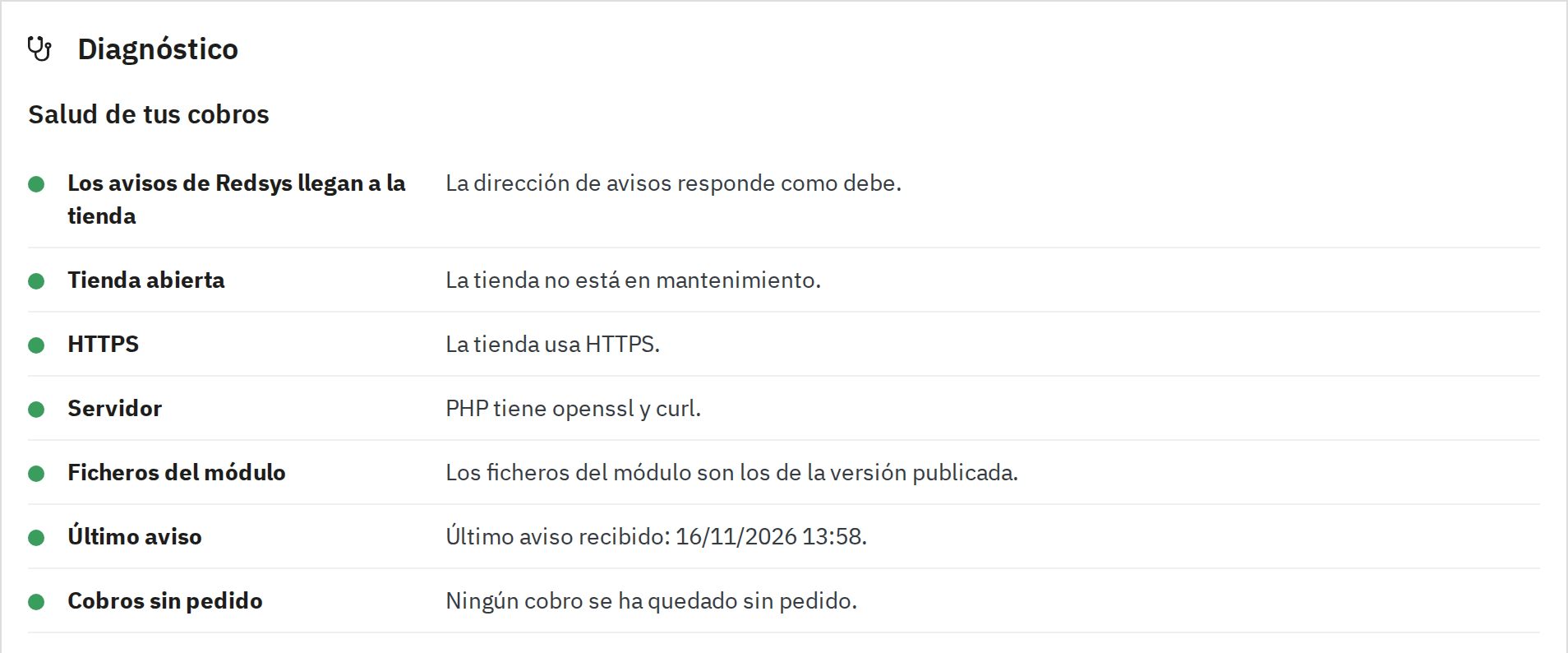
The classic POS scare: the customer paid, the bank charged and there is no order in your shop. It happens when the Redsys notification doesn't arrive, because the shop was in maintenance mode or a firewall blocked it. Diagnostics shows you with a traffic light: whether notifications arrive, whether the shop uses HTTPS, when the last notification came in and whether each POS is in test or live mode.

Diagnostics of the Redsys module for PrestaShop with a traffic light, payments charged without an order and the latest Redsys notifications

What the module does

  • On top of the Redsys notification, it accepts the payment from the signed response the customer's browser brings back
  • If your bank allows the query, it looks up in Redsys the payments of the last 3 days that have no order and lets you create it with one click
  • It keeps the latest notifications exactly as they arrived, with “Process again”, which never charges twice

It emails you

  • If a payment was charged without an order
  • If 24 hours go by with payments and no notification from Redsys
  • If the bank declines half of the payments or more
  • Once a day and only about what is new

Subscriptions with Redsys

With our Subscriptions for PrestaShopRequires an additional BK Modules module module, your customers can also subscribe paying by card through Redsys. The card is saved in your POS and every renewal is charged on its own, without the customer there, and reaches your shop as an order.

Compatibility

Your shop

  • PrestaShop 1.6.1 to 9.x, tested on 1.6.1, 1.7.5, 1.7.8, 8.1, 9.0 and 9.2
  • PHP 7.1 to 8.4
  • Classic, Hummingbird and the 1.6 theme, and the one-page checkout of PrestaShop 9
  • Multistore and multiple currencies, with the terminal for each currency
  • Seven languages: Spanish, English, French, Italian, German, Polish and Czech

Your POS

  • Any Redsys virtual POS: merchant number, terminal and signing key
  • Card, Bizum (in euros), Google Pay and Apple Pay, and PayPal, depending on what your bank switches on
  • Payment in your shop (InSite), one click, authorise and capture, and Paygold, if your bank offers them
  • The signing key is stored encrypted and never shows again on any screen

Frequently asked questions

How do I set up Redsys in PrestaShop?

You install the module and open Payment › Redsys. A two-step wizard asks for the details your bank gave you (merchant number, terminal and signing key), tests the connection and asks which methods your bank has switched on. When you finish, your customers already see Redsys in the payment step.

Does it work on PrestaShop 1.6, 1.7, 8 and 9?

Yes, with the same module from PrestaShop 1.6.1 to 9.x and PHP 7.1 to 8.4. We have tested it end to end on 1.6.1, 1.7.5, 1.7.8, 8.1, 9.0 and 9.2, also with the one-page checkout.

Can I take Bizum payments in PrestaShop?

Yes, if your bank has switched Bizum on in your POS. You tick the Bizum box on that POS and it appears in the payment step with its official logo, for carts in euros.

Can I take Google Pay and Apple Pay through Redsys?

Yes, if your bank switches them on in your POS. They appear together as a single method in the payment step, with their official logos, and your customer picks theirs on the Redsys page. You don’t need to sign up with Google or Apple.

Can I have two POS terminals from different banks?

Yes, as many as you need. Each payment method is charged by the first POS in the list that has it switched on and whose conditions match, so you can send cards to one bank and Bizum to another, or use one POS per shop. Every payment, refund and saved card always stays with its own POS.

Can my customer pay by card without leaving my shop?

Yes, with payment in your shop (InSite). Before going live, your bank has to register your domain for InSite; the module reminds you on the POS page. If you prefer, the card is paid on the Redsys page.

Can I refund a Redsys payment from PrestaShop?

Yes, from the order page, in full or in part, with the POS that charged it. A PrestaShop refund or voucher doesn't send any money back by itself: you only refund when you click “Refund”, or when the order moves to the statuses you choose.

What happens if the customer pays and no order is created?

The module also creates the order from the signed response the customer's browser brings back, even if the Redsys notification doesn't arrive. If a payment still ends up without an order, Diagnostics finds it, emails you and lets you record it in the shop with one click.

Can I send a payment link with Paygold?

Yes, if your bank has switched Paygold on: Redsys sends the link to your customer by SMS or email. Without Paygold, you copy the link to send it on WhatsApp, or your shop emails it. To charge for something that isn’t in the shop you also have the open payment form, where your customer types the amount; those payments have their own list and you refund them like any other.

Can I add a surcharge for paying by card?

No: the European payments rules (PSD2) forbid charging consumers a surcharge for paying by card. If you want to reward a payment method, do it with a PrestaShop cart rule.

Can I let one employee make refunds and not another?

Yes. Each screen of the module has its own permission in Advanced Parameters › Team › Permissions: each profile only sees what you let it see, and without edit permission it sees the order's payments without the buttons that move money.

Do you take a commission on each payment?

No. You pay for the licence once and payments go from your POS to your account, with the fees you have agreed with your bank.

Setup

Guided the first time

With no POS yet, the module takes you to a two-step wizard: your bank details, with “Test connection and continue”, and what your bank has switched on, with the logo of each method. You start in test mode and go live with one button when your bank gives you the live key.

Each employee, their own part

Home, Charges, Payment links, POS, Settings and Diagnostics each have their own permission. Whoever handles customers can create links without seeing the bank key or touching the POS terminals, and the menu only shows them what they can open.

Shop settings

The email address that gets the alerts, the statuses that capture a hold or refund a payment on their own, the open payment form with its POS and the log for support. Anything your shop doesn't use doesn't appear on any screen.

Got a question before you buy? Tell us about your shop and we'll reply within 24 hours.

Ask us

Tell us what your business needs

A module, an app, a server that is giving you trouble or something urgent. We answer within 24 hours, with a fixed quote with a price and a date.